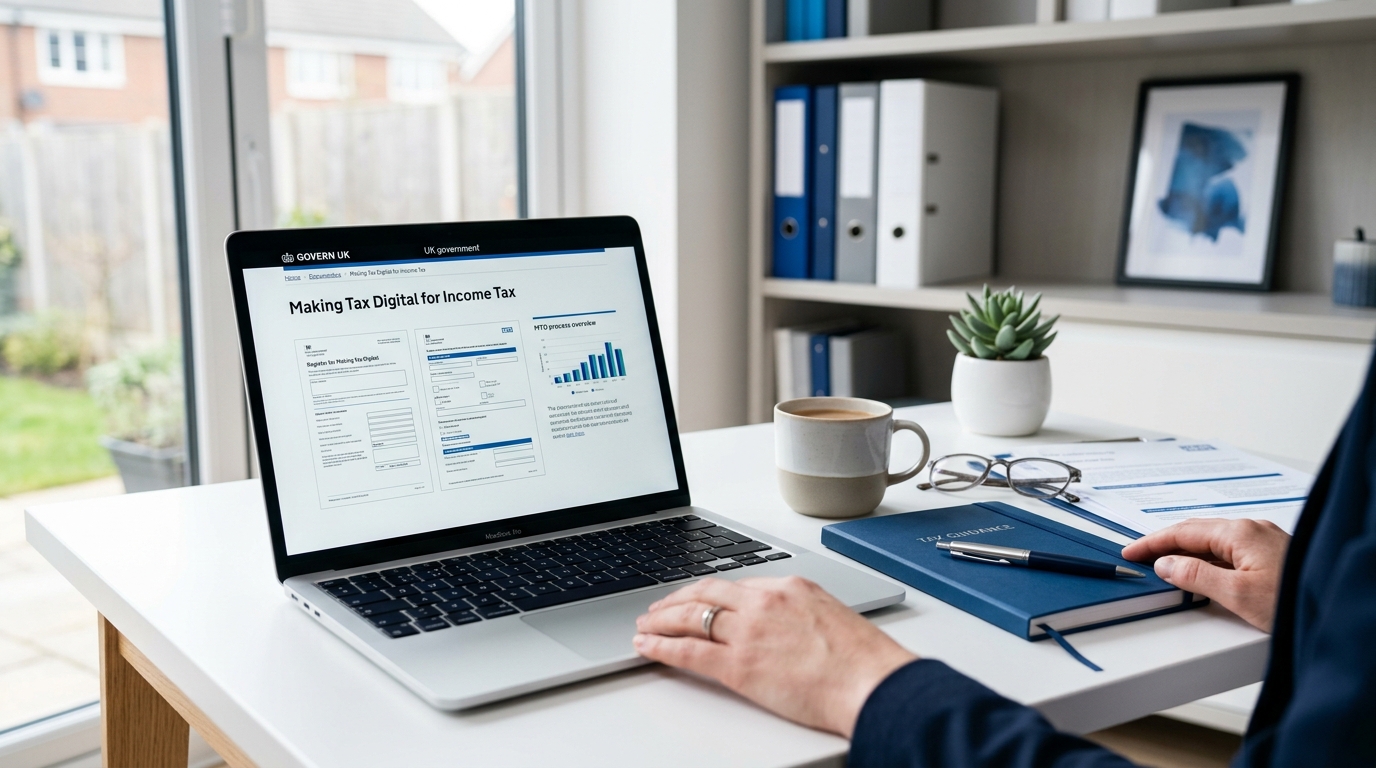
Making Tax Digital for Income Tax is coming whether you're ready or not. If you're a sole trader or landlord earning above the threshold, you'll need to sign up, and the process isn't as straightforward as HMRC might like you to think.
This guide walks you through exactly what you need to do, step by step, so you can get signed up without the headache.
Do You Actually Need to Sign Up?
Before you go through the sign-up process, check whether you're actually required to join. It depends on your gross income (that's total income before expenses) and which wave you fall into:
- From 6 April 2026: Sole traders and landlords with gross income over £50,000
- From April 2027: Gross income over £30,000
- From April 2028: Gross income over £20,000
This applies to income from self-employment, property rental, or both combined. If your total gross income from these sources crosses the threshold, you're in.
Important: It's gross income, not profit. Even if your expenses bring your profit right down, it's the total money coming in that counts.
What You'll Need Before You Start
Gather these before you sit down to sign up. Trying to find them halfway through the process is a recipe for frustration:
- Government Gateway user ID and password, the one you use for Self Assessment. If you've lost it, you'll need to recover it first at gov.uk
- National Insurance number
- Your business start date and accounting period details
- Compatible MTD software, you must choose and set up your software before you sign up with HMRC. You cannot sign up without it
That last point catches people out. HMRC requires you to have MTD-compatible software ready to go. If you haven't chosen one yet, compare MTD software options here to find the right fit for your situation.
Step 1: Choose Your MTD Software
This has to come first. HMRC won't let you sign up for MTD for Income Tax unless you have compatible software in place.
Your software needs to be able to:
- Keep digital records of your income and expenses
- Send quarterly updates to HMRC
- Submit your final declaration (which replaces the Self Assessment tax return)
There are several HMRC-recognised options ranging from free to around £15 per month. The right choice depends on whether you're a sole trader, landlord, or both, and how much hand-holding you want from the software. Our software comparison breaks down the key differences.
Once you've chosen and set up an account with your software provider, you're ready for the next step.
Step 2: Sign Up Through Your Software
For most people, the easiest route is to sign up for MTD for Income Tax directly through your chosen software. Most major providers (QuickBooks, Xero, FreeAgent, Sage, and others) have a built-in sign-up flow that walks you through it.
The software will ask you to authorise it to connect with HMRC. This involves:
- Logging in with your Government Gateway credentials
- Granting the software permission to interact with HMRC on your behalf
- Confirming your business details
This authorisation is secure and uses HMRC's own systems. Your software provider doesn't see your Government Gateway password.
Step 3: Sign Up Directly with HMRC (Alternative Route)
If your software doesn't handle the sign-up for you, or you prefer to do it yourself, you can sign up directly on the HMRC website.
Here's the process:
- Go to gov.uk and search for "Sign up for Making Tax Digital for Income Tax"
- Click through to the sign-up service
- Sign in with your Government Gateway user ID and password
- HMRC will check your details against their records, your name, National Insurance number, and Self Assessment information
- You'll be asked to confirm your income sources (self-employment, property, or both)
- Enter your business details including accounting period dates
- Select the tax year you want to start using MTD from
- Confirm and submit your sign-up
You should receive confirmation on screen and by email. Keep this safe, you'll need it if anything goes wrong later.
Step 4: Link Your Software to HMRC
If you signed up directly with HMRC rather than through your software, you'll now need to connect the two. Open your MTD software and look for an option like "Connect to HMRC" or "Authorise with HMRC."
You'll go through the Government Gateway login again to authorise the connection. Once done, your software can send quarterly updates and receive information from HMRC.
Step 5: Set Up Your Digital Records
With everything connected, it's time to get your records in order. Under MTD for Income Tax, you need to keep digital records of:
- All business income: every sale, rental payment, or other taxable receipt
- All allowable expenses: categorised properly (not just lumped together)
- The date, amount, and category of each transaction
Your software handles the formatting. You just need to make sure everything goes in. If you're currently using spreadsheets or paper records, now is the time to start entering things into your MTD software instead.
Top tip: Connect your bank account to your software if it offers bank feeds. This pulls in transactions automatically, so you just need to categorise them rather than type everything manually. Most of the leading MTD software providers offer this feature.
What Happens After You Sign Up?
Once you're signed up and your software is connected, here's what changes:
- Quarterly updates: You'll submit a summary of your income and expenses to HMRC every three months through your software. These aren't tax returns; they're progress updates.
- End of period statement: After your accounting year ends, you'll finalise your figures.
- Final declaration: This replaces your Self Assessment tax return. It's where you confirm everything is correct and HMRC calculates what you owe.
The quarterly deadlines are typically 7 August, 7 November, 7 February, and 7 May, though your specific dates depend on your accounting period.
When Should You Sign Up?
Don't leave it until the last minute. If you're in the first wave (income over £50,000), MTD for Income Tax starts on 6 April 2026. That means your first quarterly update will be due a few months after that.
Signing up early gives you time to:
- Get comfortable with your software before it actually matters
- Set up bank feeds and import historical data
- Iron out any issues with your HMRC connection
- Ask your accountant questions while there's no deadline pressure
HMRC also recommends signing up ahead of your mandatory start date. Voluntary sign-up is already open.
What If You Have an Accountant?
If you use an accountant or bookkeeper, they can sign you up on your behalf through their HMRC agent services account. Many accountants are already getting their clients set up ahead of April 2026.
Even if your accountant handles the sign-up, you'll still need MTD-compatible software. Some accountants have a preferred provider; ask them before choosing your own. Either way, it's worth understanding what each software offers so you can have an informed conversation.
Common Sign-Up Problems
"I can't find my Government Gateway details." Go to gov.uk and use the recovery service. You'll need your National Insurance number and a form of ID. Allow a few days if they need to post you a new activation code.
"HMRC says I'm not eligible." This usually means your Self Assessment record doesn't show qualifying income sources. Check your SA record is up to date, or call HMRC's helpline.
"My software won't connect to HMRC." Try clearing your browser cache, using a different browser, or contacting your software provider's support team. This is usually a temporary glitch.
The Bottom Line
Signing up for Making Tax Digital for Income Tax isn't complicated; it's just unfamiliar. Choose your software first, sign up through your software or HMRC directly, connect the two, and start keeping digital records.
The biggest mistake you can make is leaving it until the deadline. Get set up now, spend a few weeks getting comfortable with the software, and you'll barely notice when MTD officially kicks in.
If you haven't picked your software yet, compare the top MTD-compatible options here. We've broken down pricing, features, and which ones work best for sole traders versus landlords.
Ready to choose your MTD software?
Compare HMRC-approved options side by side. Find the right fit for your business.
Compare Software →